Adding Objects

- Free
In this section, we will learn about changing the parameters on new objects before starting to work on them.
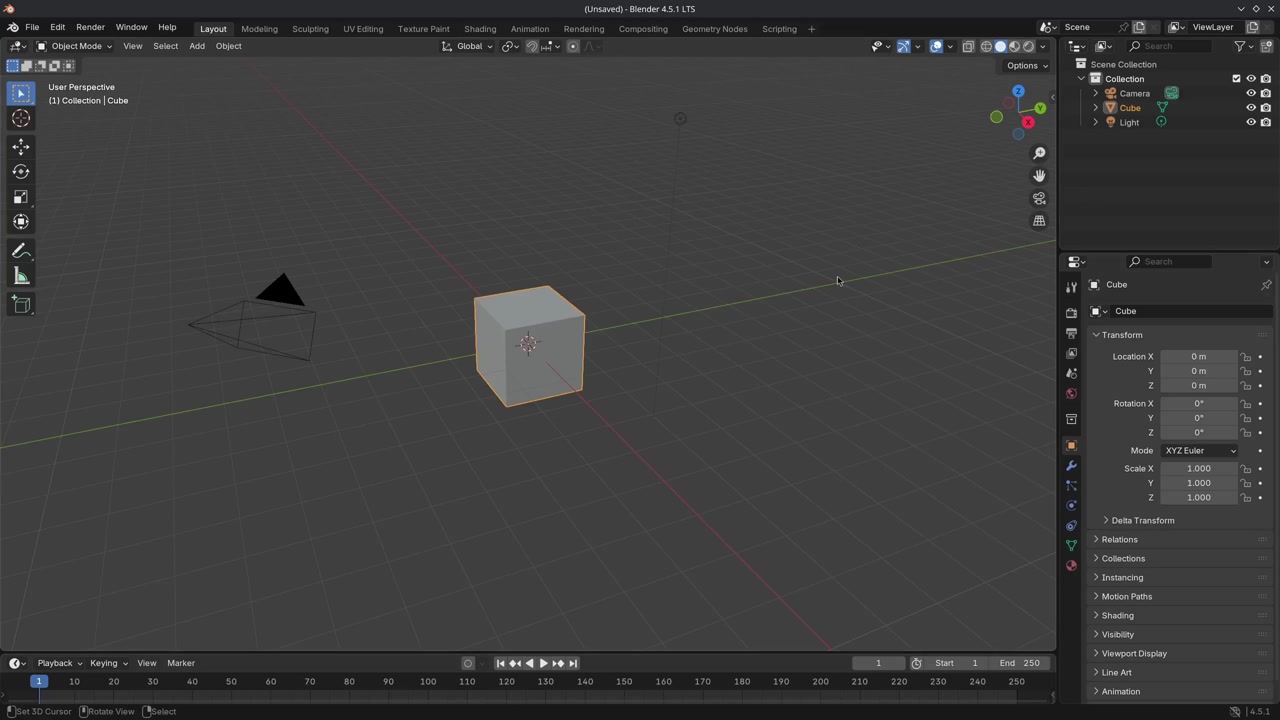
Open a new Blender File and select all A and delete the selection using X or Del.
Add a Circle and at the bottom of the 3D Viewport is an "Operator" -panel to change different aspects of the mesh. We can change the number of vertices to easily create a "hex" shape.
Delete the Circle and add a UV Sphere. It has different parameters that we can change. We can type values manually instead of using the mouse. We can also do math inside of parameters to, for instance, divide the segments by 4 using 16/4 and Enter to confirm. Not only that, but we can also multiply using * by a certain value.
Delete the UV Sphere and add a Cylinder where the "Cap Fill type" can be changed. To see the result of this change, you can activate Wireframe in the Viewport Overlay. A "Triangle Fan" fills the hole using triangles pointing towards the center.
There is a difference between adding objects in Object Mode or in Edit Mode:
- Adding objects in Object Mode creates its own mesh data
- Adding objects in Edit Mode will add the object as mesh data to the existing one and become part of the entire object.
Warning
When adding an object, it is important not to execute another operator or function (by moving, rotating, or scaling the object, for example). This will remove the previous operator settings or change them to the new one just used.
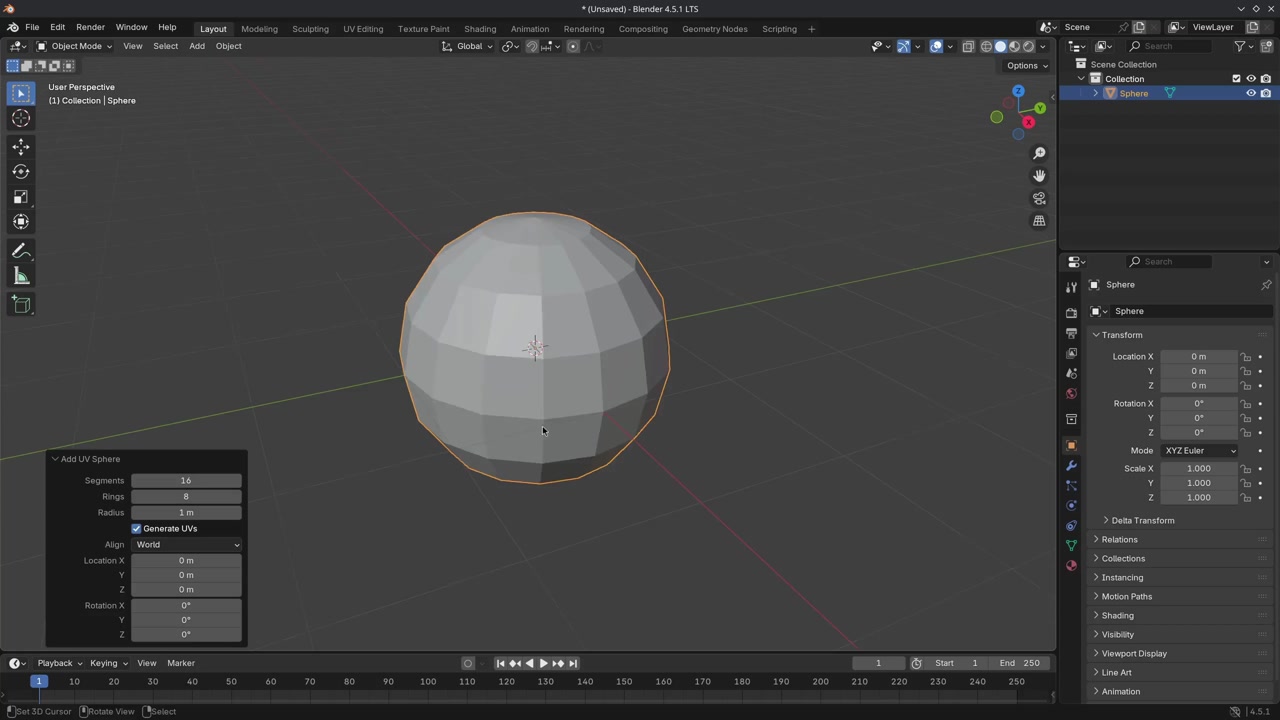
When using an operator, it will create a small panel with parameters before working on them, It is better to change the scale, radius, and other parameters this way before starting to work. It is recommended to add various objects and learn how to adjust them before working on the object in Edit Mode.
That was the end of the lesson. We have learned:
- That we can change different aspects of the object using the operator panel.
Join to leave a comment.