Knife Tool

- Free
In this section, we will learn how to add more local cuts with the Knife Topology Tool and some of its functions. This tool is useful to immediately change the topology of the mesh to quickly extrude shapes, it is like carving wood with a knife but on a mesh level.
Warning
Before we start, there is actually a difference between an Operator and a Tool in Blender. They are:
- A Tool is an "active" tool used from the Toolbar and can be opened using
T. - An Operator is the functionality comparable to a tool but doesn't make it the active tool. We are using the "non-active" knife operator in this section and most of the course. Even though we call it the Knife Topology Tool, it is actually the Knife operator.
Open a new Blender File and enter Edit Mode on the default cube in the scene.
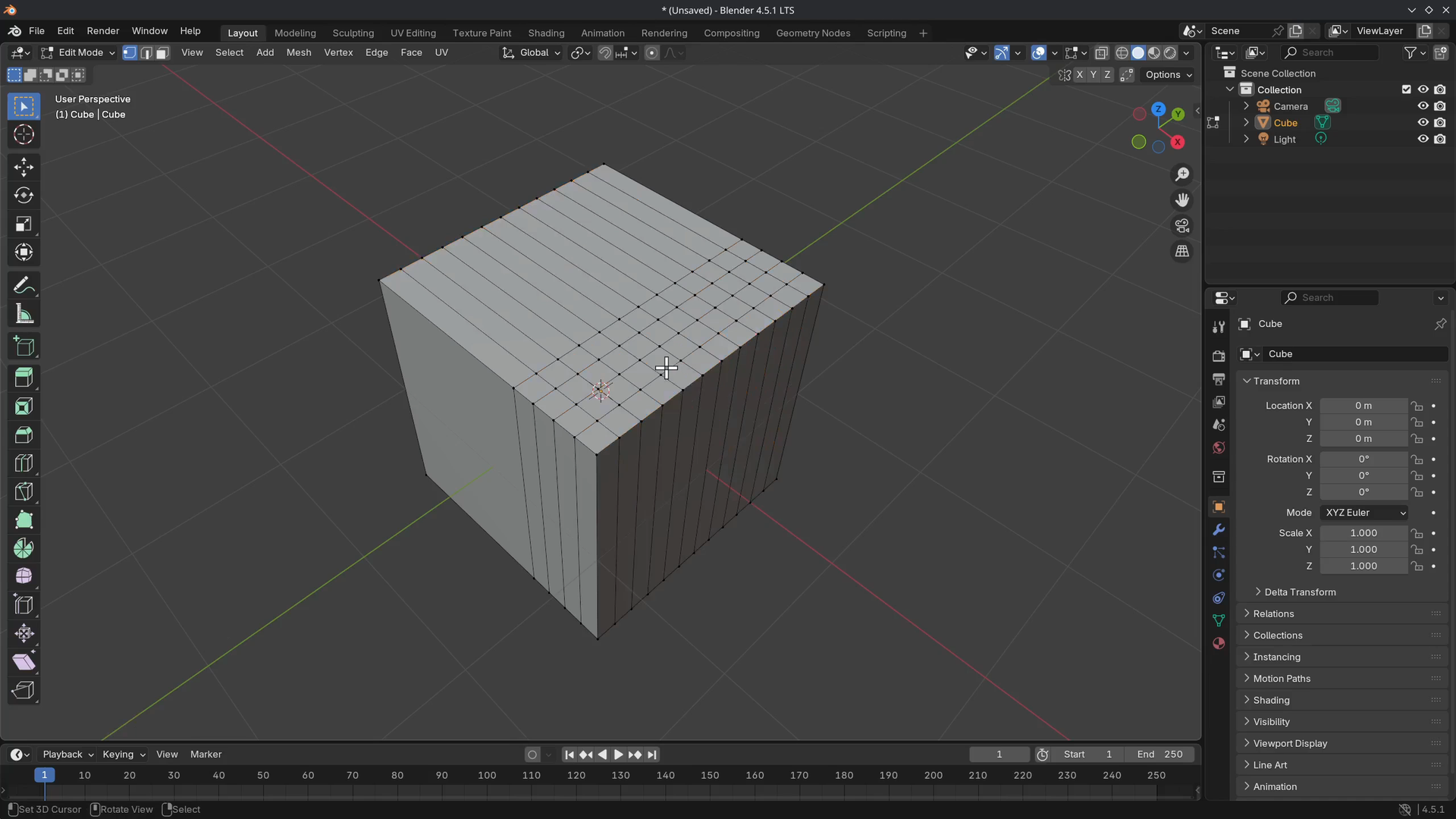
Add a few loop cuts similar to the image below (Ctrl + R) and use the Wheel or Numpad + to add more loops.
Use K to activate the Knife Topology Tool. The mouse cursor should look like a small knife.
Note
How a cyan dot and dimmed cyan edge are highlighted and snapped when hovering over vertices or edges.
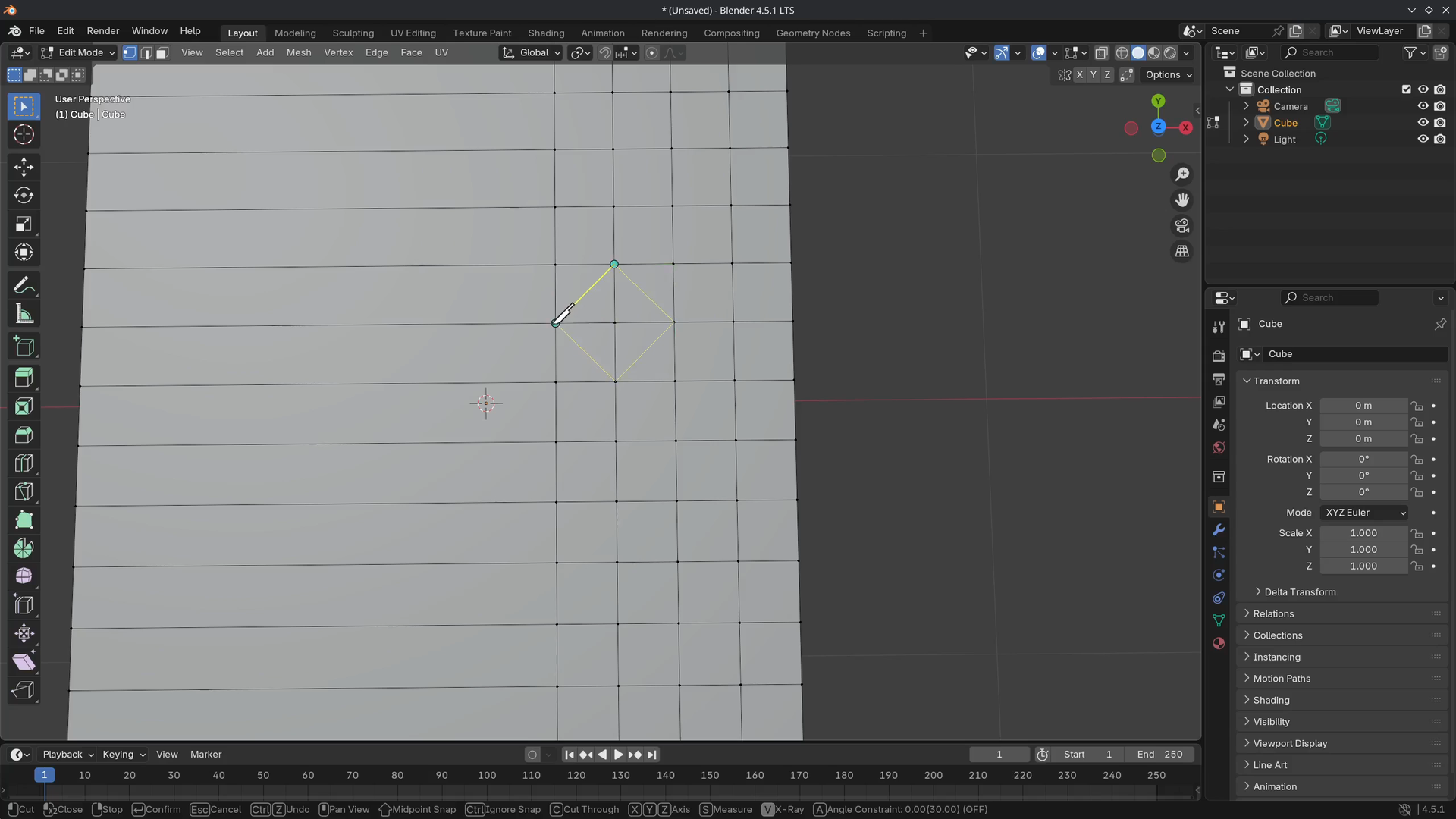
Try to replicate the cut shown and make sure it is closed by selecting the first vertex. Use Enter to confirm. After confirming that, the newly created edges are highlighted.
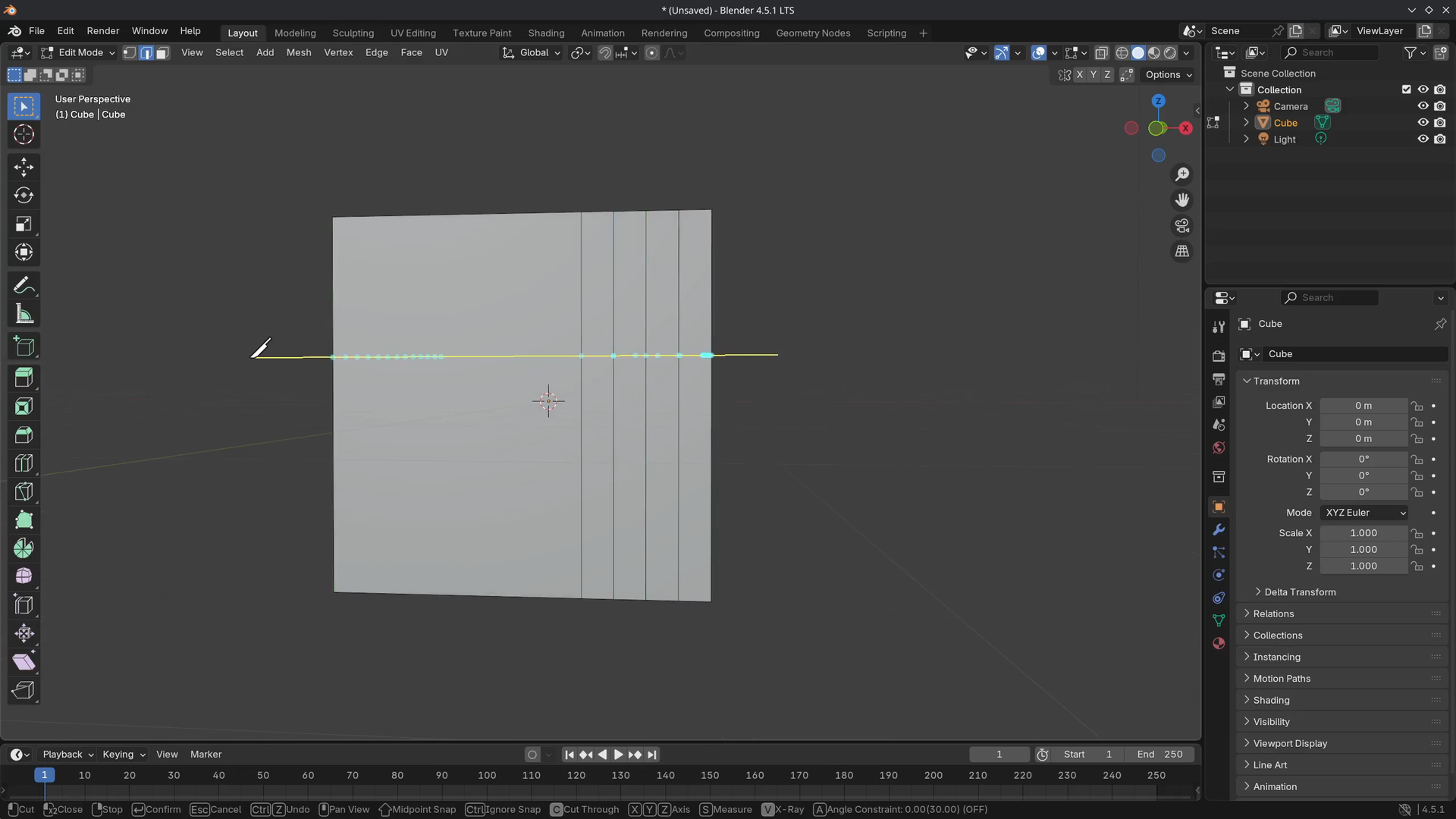
Go into top view and activate the Knife Topology Tool again (K) and hold Shift to snap to the center points of edges. Create a single cut as shown.
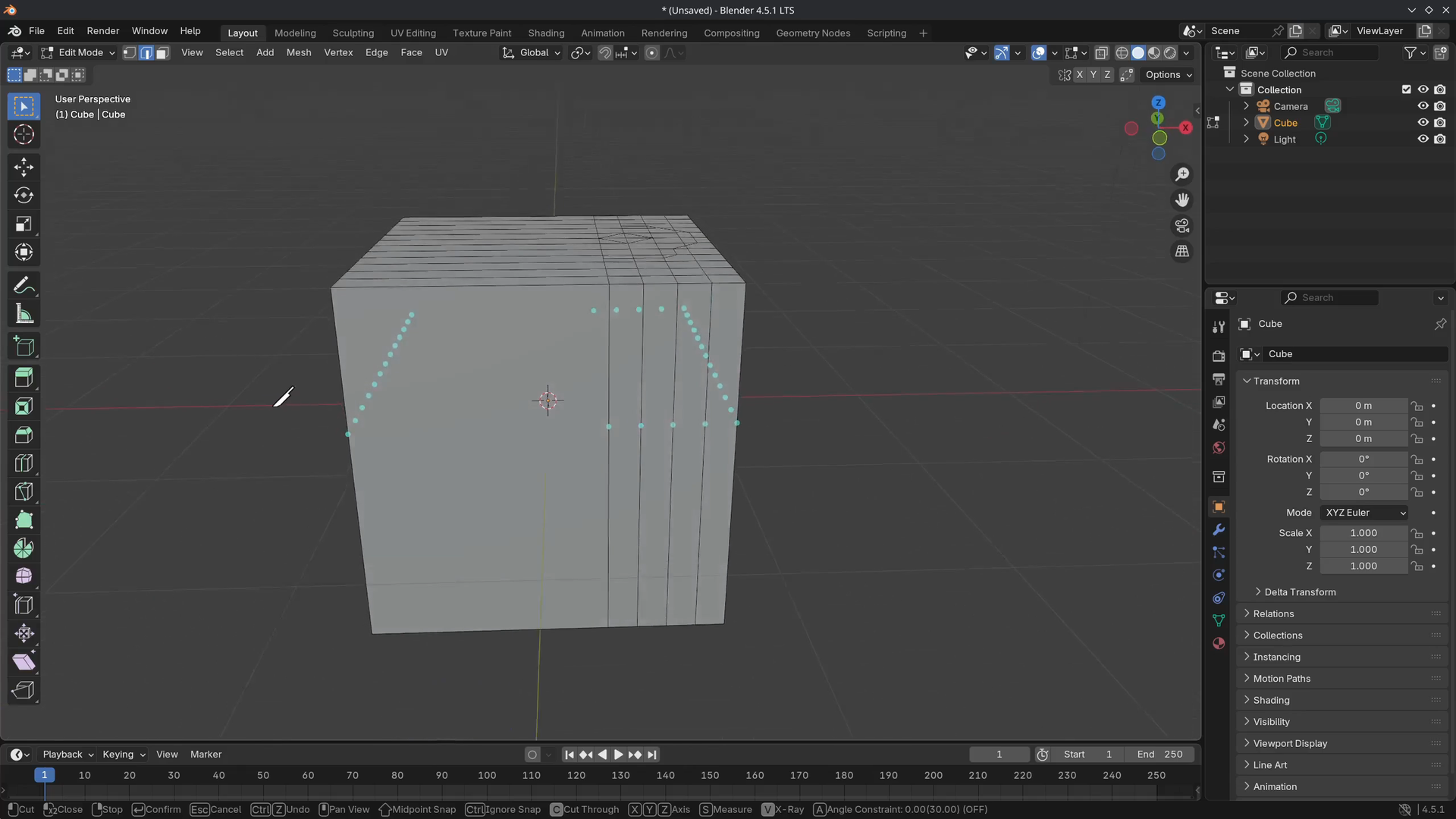
We can also cut through the entire cube by pressing C to "Cut Through" the mesh. Start the cut outside the mesh and overlap the knife to the other side. Use Enter to confirm.
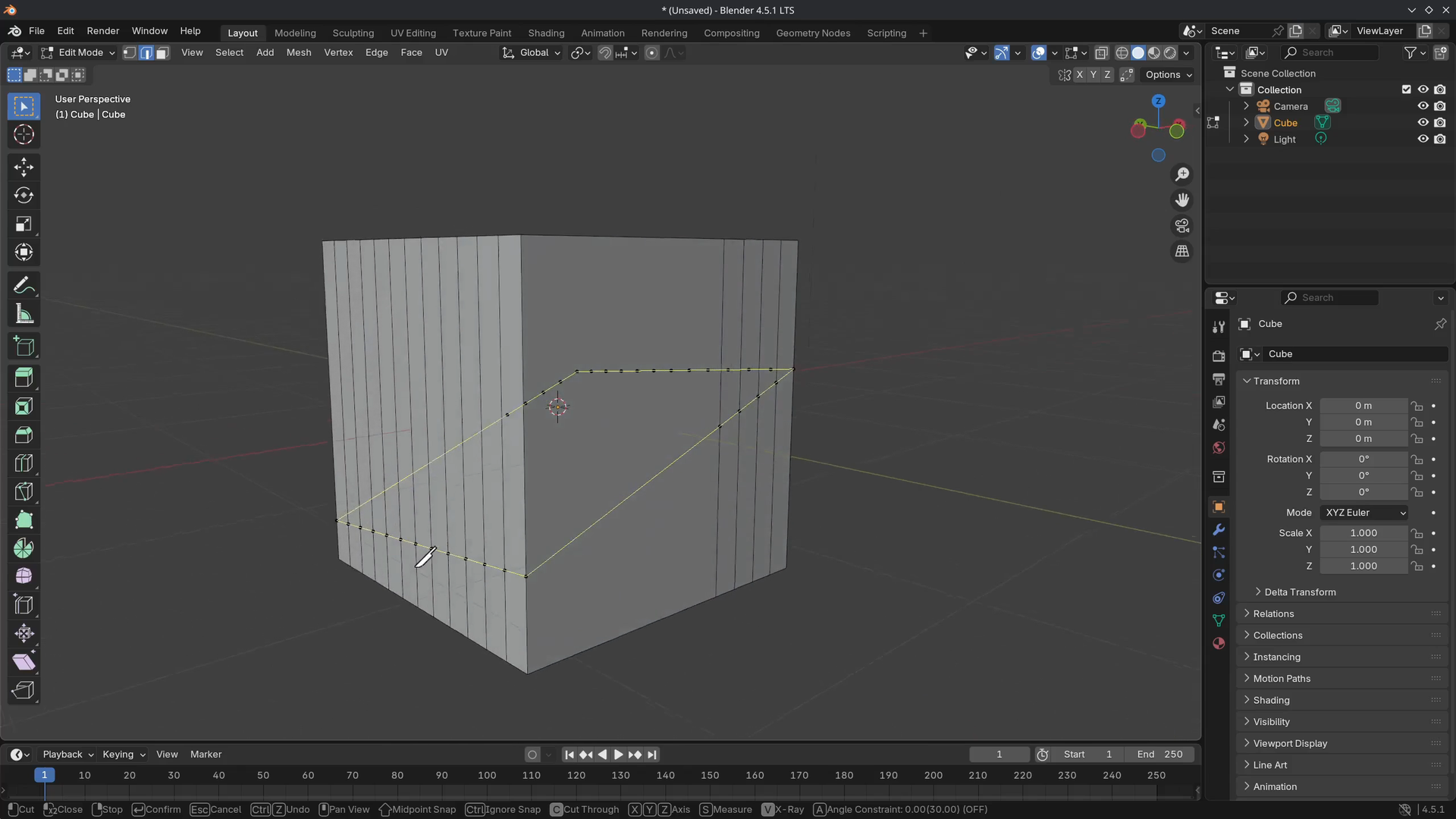
Note
How all the dots are shown behind the cube if you orbit around the cube.
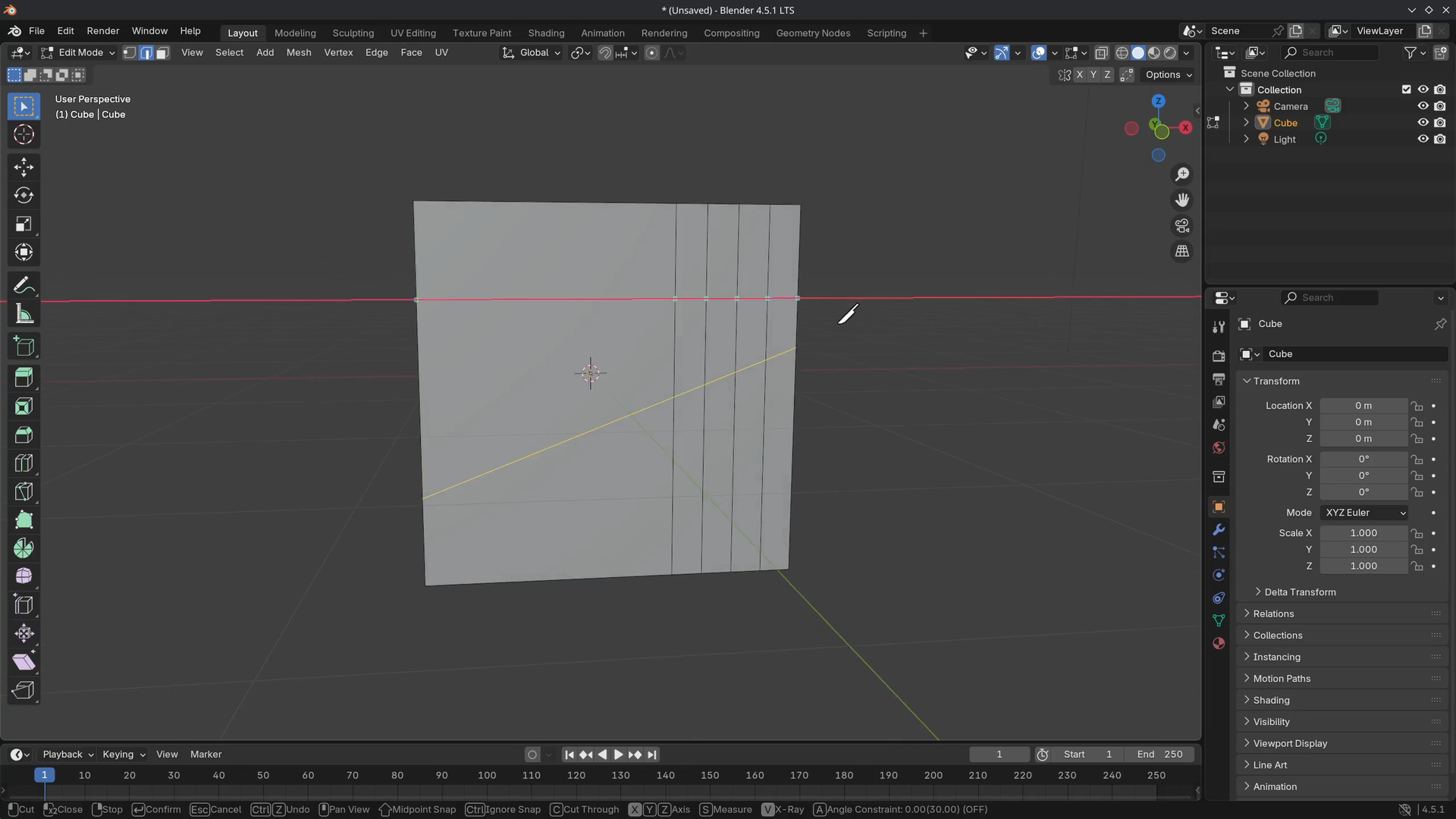
We can also create a cut along an axis. Use any of the axes X, Y, Z to constrain the cut along these axes.
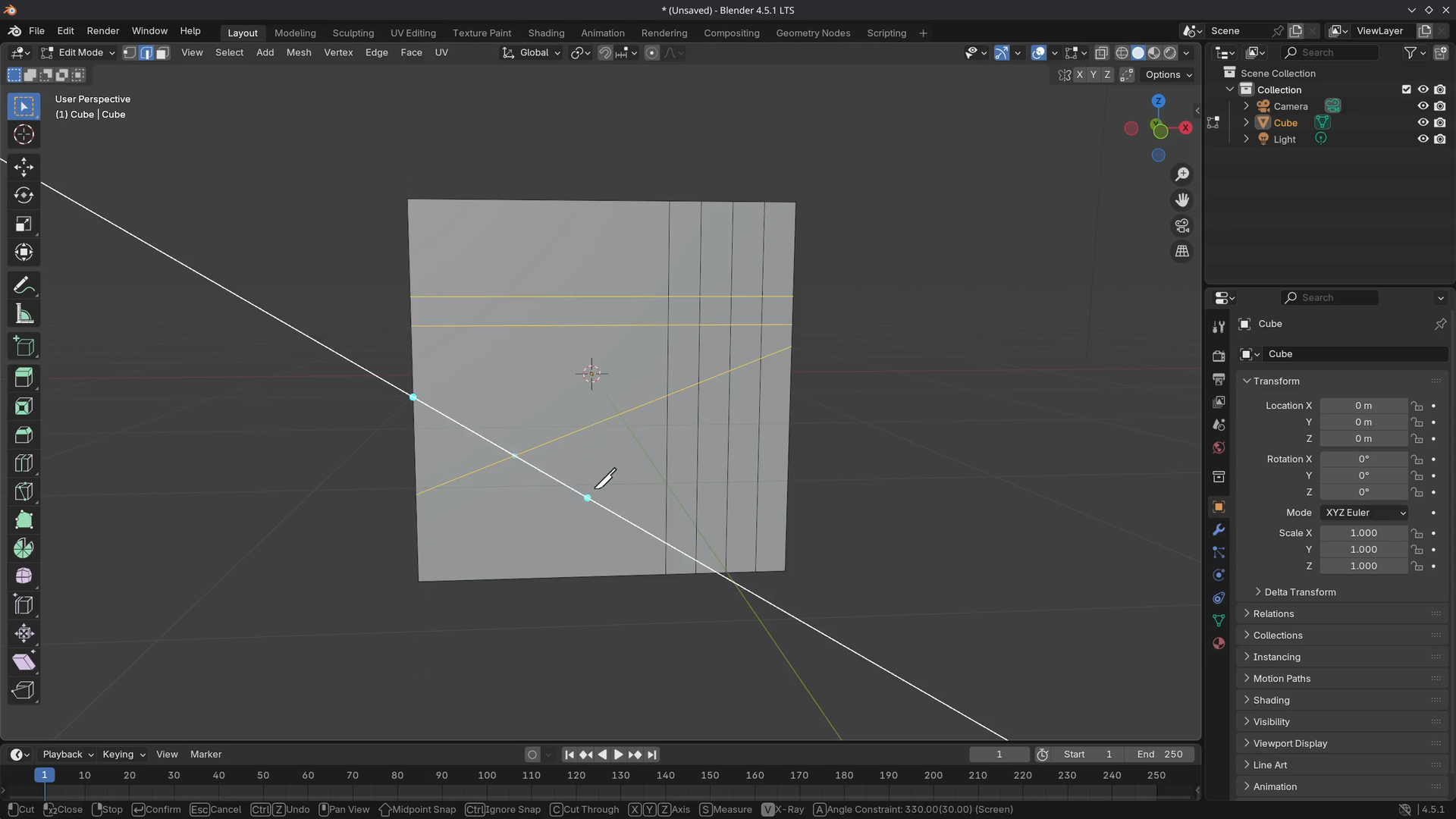
The last function is Angle Constraint. By using A, we can constrain the cut along 30-degree increments.
This tool is also available in the Toolbar. If something doesn't go the way you want, use Esc to cancel or Undo Ctrl + Z.
There are a lot of shortcuts and things to remember. Try to play around with the knife tool before going to the next lesson.
Mini assignment
Use the Knife Topology Tool to carve this X-shape out of a subdivided cube, scroll down to see the solution
Solution
That was the end of the lesson. We have learned:
- How to use the Knife Topology Tool (
K) with additional functionalities.- Visit the manual to learn more about the Knife Topology Tool.
Join to leave a comment.